Embedding Citadel and choosing a display mode
Citadel supports two display modes:
panel: a hidden overlay that opens from the keyboardinline: an always-visible terminal surface rendered in your layout
You can also toggle whether the output pane is shown.
Panel mode
Panel mode is the default. This shows Citadel in an initially hidden slide-up panel.
import { Citadel, command, createCommandRegistry, text } from '@citadel_cli/react';

const commandRegistry = createCommandRegistry([
  command('hello')
    .describe('Print a hello message')
    .handle(async () => text('Hello from the panel')),
]);

export function PanelModeExample() {
  return <Citadel commandRegistry={commandRegistry} />;
}
Behavior in panel mode:
- Citadel listens for the
showCitadelKeyshortcut. The default is.. - When no
containerIdis provided, the custom element is appended todocument.body. - The global shortcut does not fire while focus is inside an
inputortextarea. - Pressing
Escapecloses the panel unless you setcloseOnEscape: false.
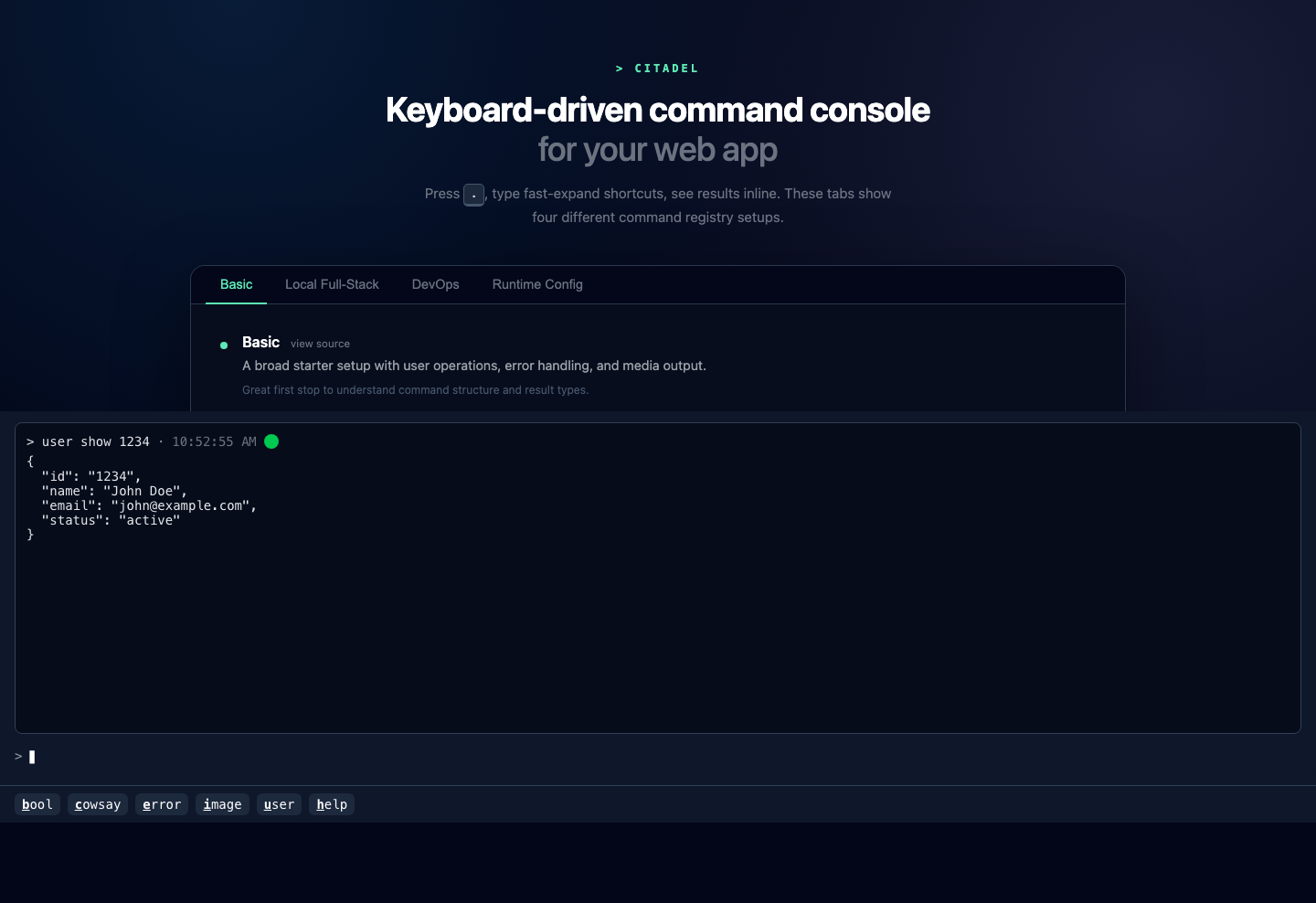
Panel mode stays hidden until the user opens it, then overlays the current app.
Inline mode
Inline mode renders Citadel immediately instead of waiting for a keyboard shortcut.
import { Citadel, command, createCommandRegistry, text } from '@citadel_cli/react';

const commandRegistry = createCommandRegistry([
  command('status')
    .describe('Show the current status')
    .handle(async () => text('All systems nominal')),
]);

export function InlineModeExample() {
  return (
    <div style={{ minHeight: '320px' }}>
      <Citadel
        commandRegistry={commandRegistry}
        config={{ displayMode: 'inline' }}
      />
    </div>
  );
}
Use inline mode when Citadel is part of the page rather than an overlay.
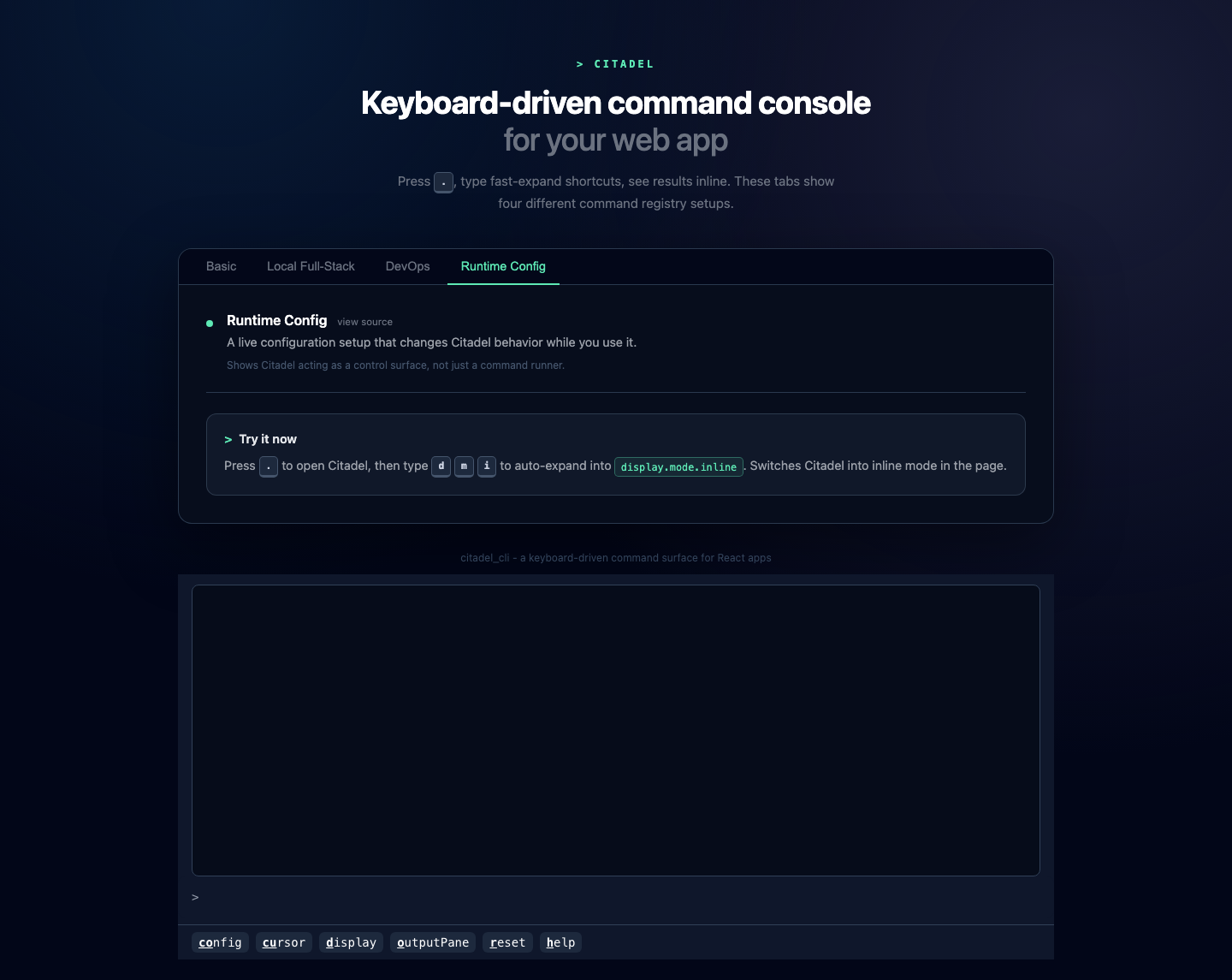
Inline mode renders Citadel directly in the page layout, so it behaves like a permanent console surface.
Mounting into a specific container
If you need Citadel to render into a known DOM node, pass containerId.
import { Citadel, command, createCommandRegistry, text } from '@citadel_cli/react';

const commandRegistry = createCommandRegistry([
  command('status')
    .describe('Show the current status')
    .handle(async () => text('Mounted into a specific element')),
]);

export function InlineContainerExample() {
  return (
    <>
      <section id="citadel-inline-host" />
      <Citadel
        containerId="citadel-inline-host"
        commandRegistry={commandRegistry}
        config={{ displayMode: 'inline' }}
      />
    </>
  );
}
Hiding the output pane
If your commands update the host app directly, you may not want Citadel to show its output/history pane.
This is useful when Citadel is acting more like a command palette than a terminal. For example:
- a command opens a modal
- a command changes page-level state
- a command triggers navigation
- the real feedback already appears elsewhere in the app
import { Citadel, command, createCommandRegistry, text } from '@citadel_cli/react';

const commandRegistry = createCommandRegistry([
  command('status.refresh')
    .describe('Refresh the surrounding UI')
    .handle(async () => text('Refreshed')),
]);

export function HiddenOutputExample() {
  return (
    <Citadel
      commandRegistry={commandRegistry}
      config={{ showOutputPane: false }}
    />
  );
}
With showOutputPane: false, Citadel still runs commands. It just hides the output/history area, which keeps the UI smaller and avoids duplicating feedback that already appears in the host app.
Styling and isolation
Citadel renders inside a shadow DOM.
That gives you two useful properties:
- your app's CSS does not accidentally restyle the Citadel UI
- Citadel's internal styles do not leak into the rest of your app
To fit Citadel into a specific space, size the host container or pass height-related config values such as initialHeight, minHeight, and maxHeight.
Previous: Defining commands